User Handbook
Everything you need to know about finding support, making referrals, and managing listings on Community Connect.
For Residents
Find and access local support services
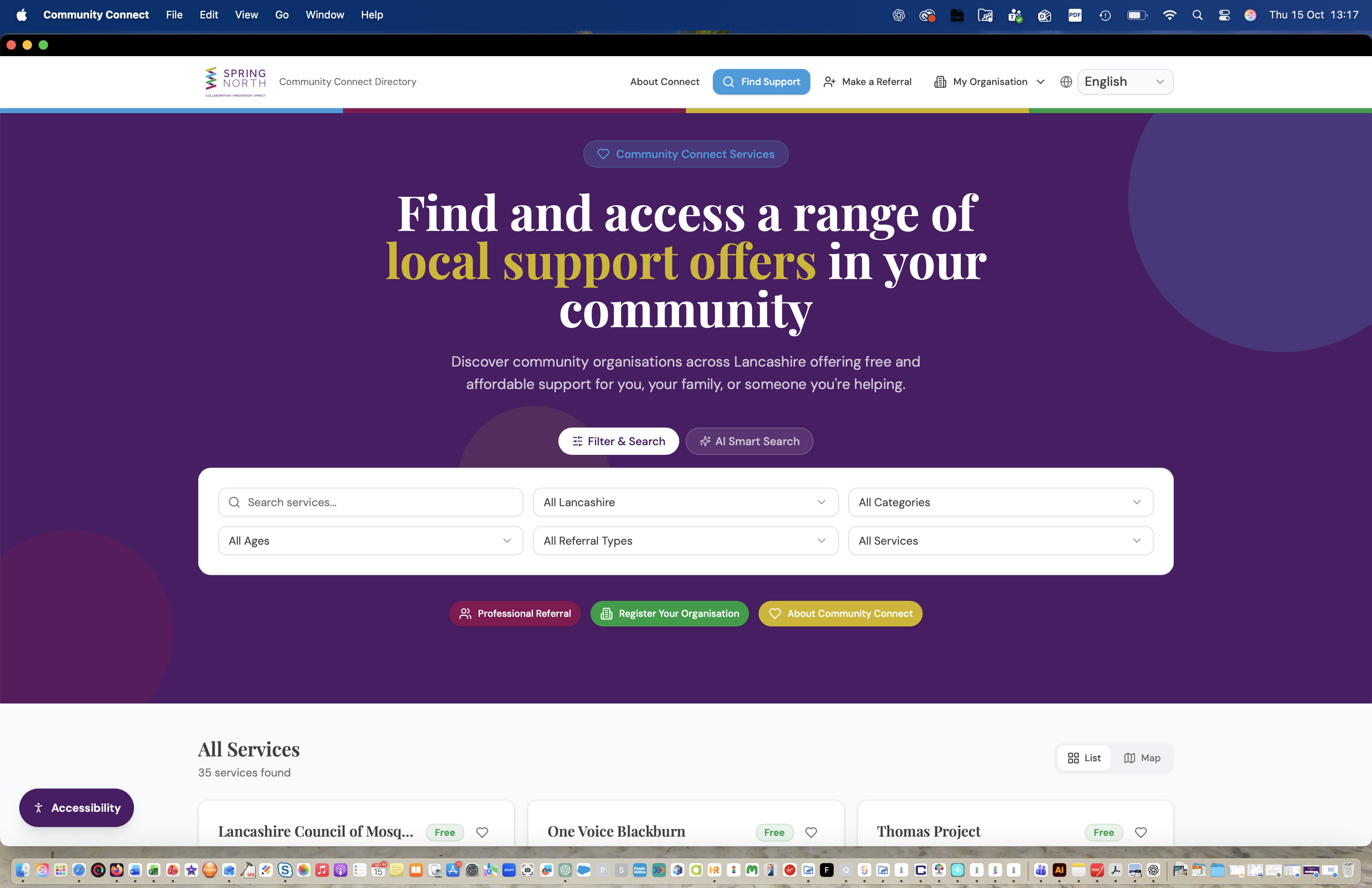
Community Connect is a free, public directory of local charities and community services across Lancashire. No account is needed to search or view services.
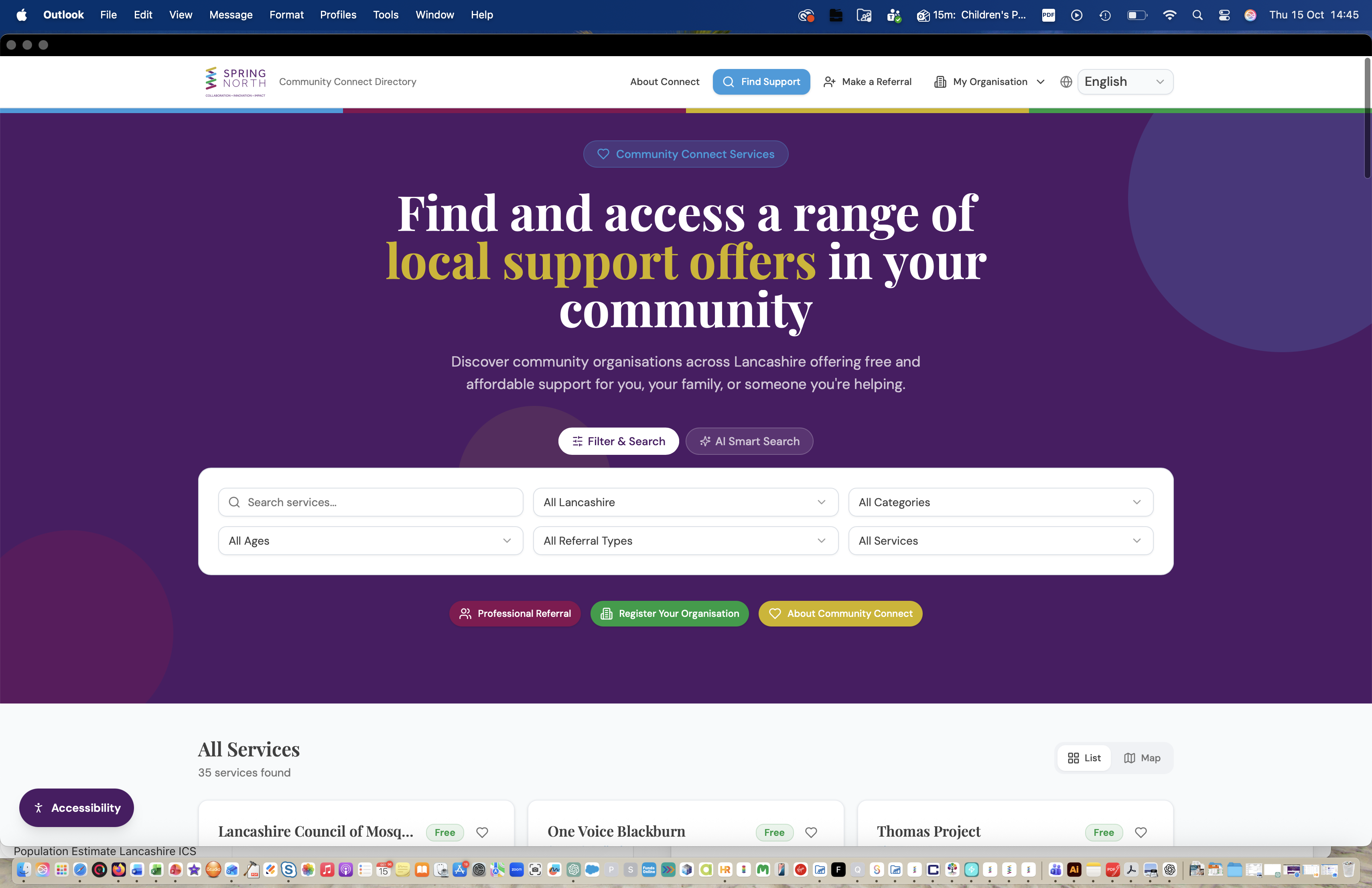
Two ways to search
Filter search
AI smart search
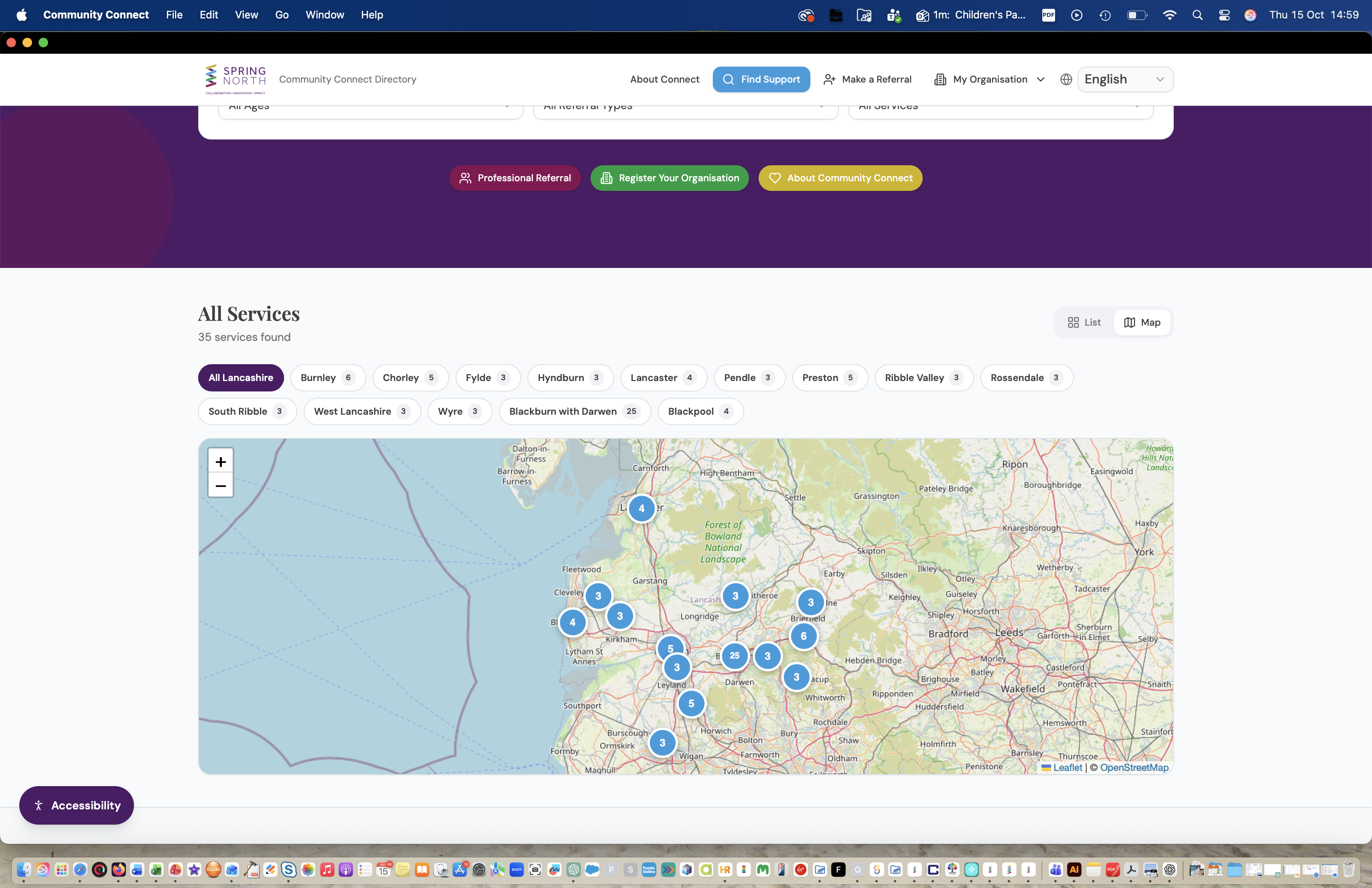
List and map views
Toggle between a card list and an interactive map showing where services are located across Lancashire. Click a district on the map to filter results to that area.
Shortlisting services
Tap the heart icon on any service card to add it to your shortlist — a handy panel where you can compare saved services and download them as a PDF. Your shortlist is stored privately on this device only and clears when you close your browser, so your choices stay personal to you.
Language options
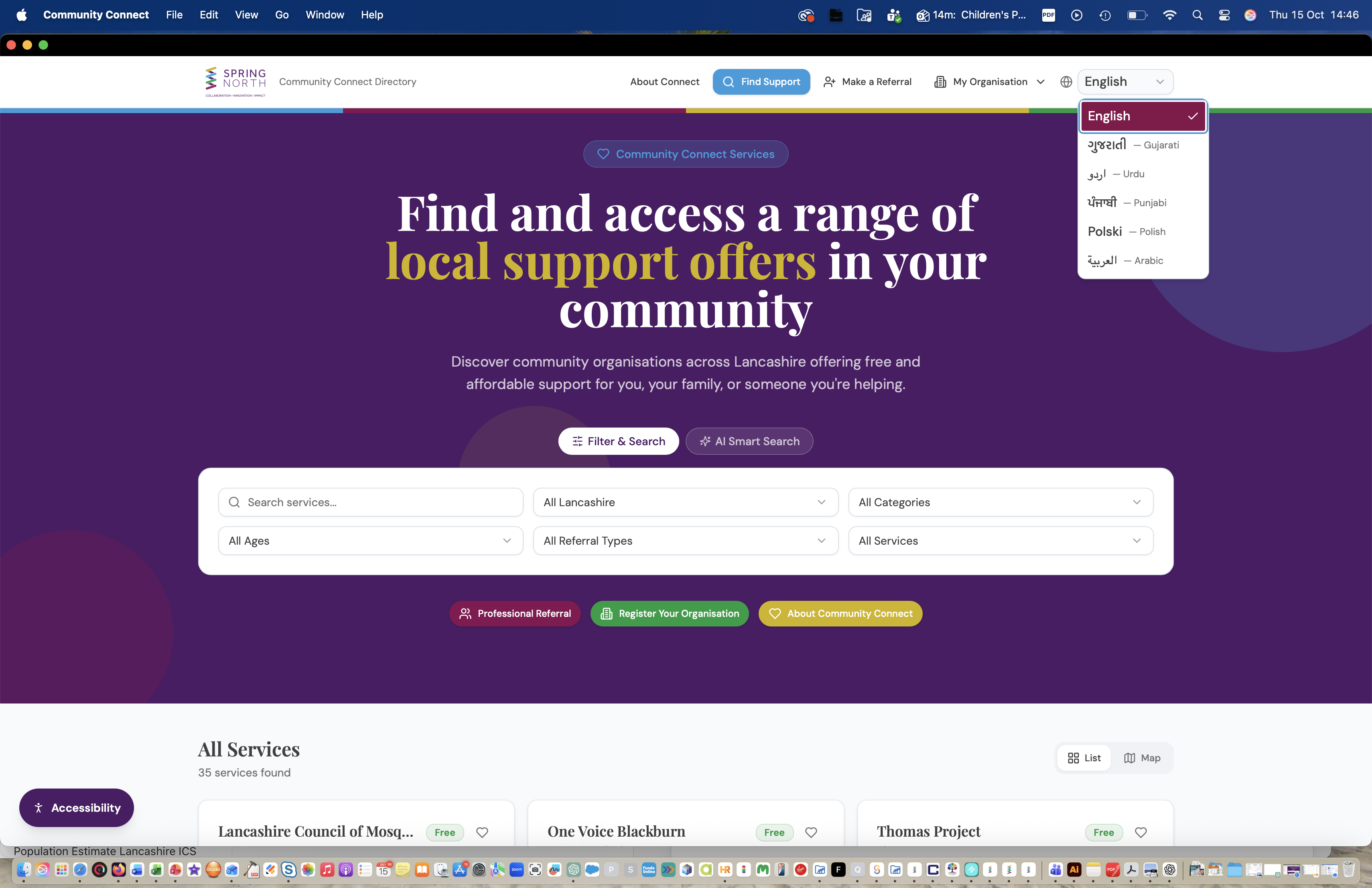
Community Connect is available in several languages to make sure everyone in our communities can find support. When language switching is enabled, a language selector appears in the top-right corner of the navigation bar — look for the globe icon next to the word "English".
Click the selector to open the dropdown and choose from English, Gujarati, Urdu, Punjabi, Polish, and Arabic. The entire site — navigation, search, and service descriptions — instantly switches to your chosen language. Your selection is remembered while you browse, so you can explore the directory comfortably in the language that's right for you.
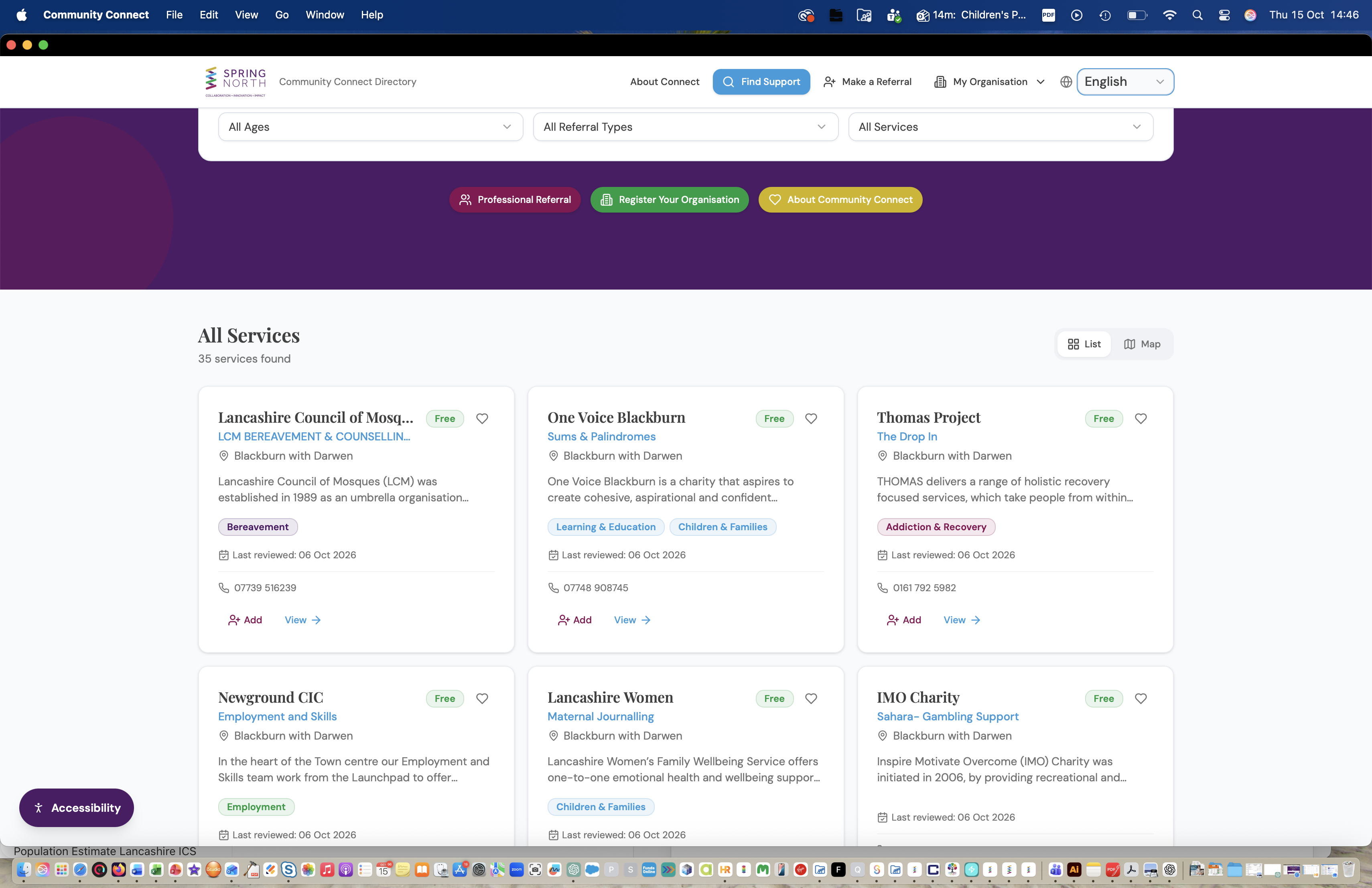
Viewing a service
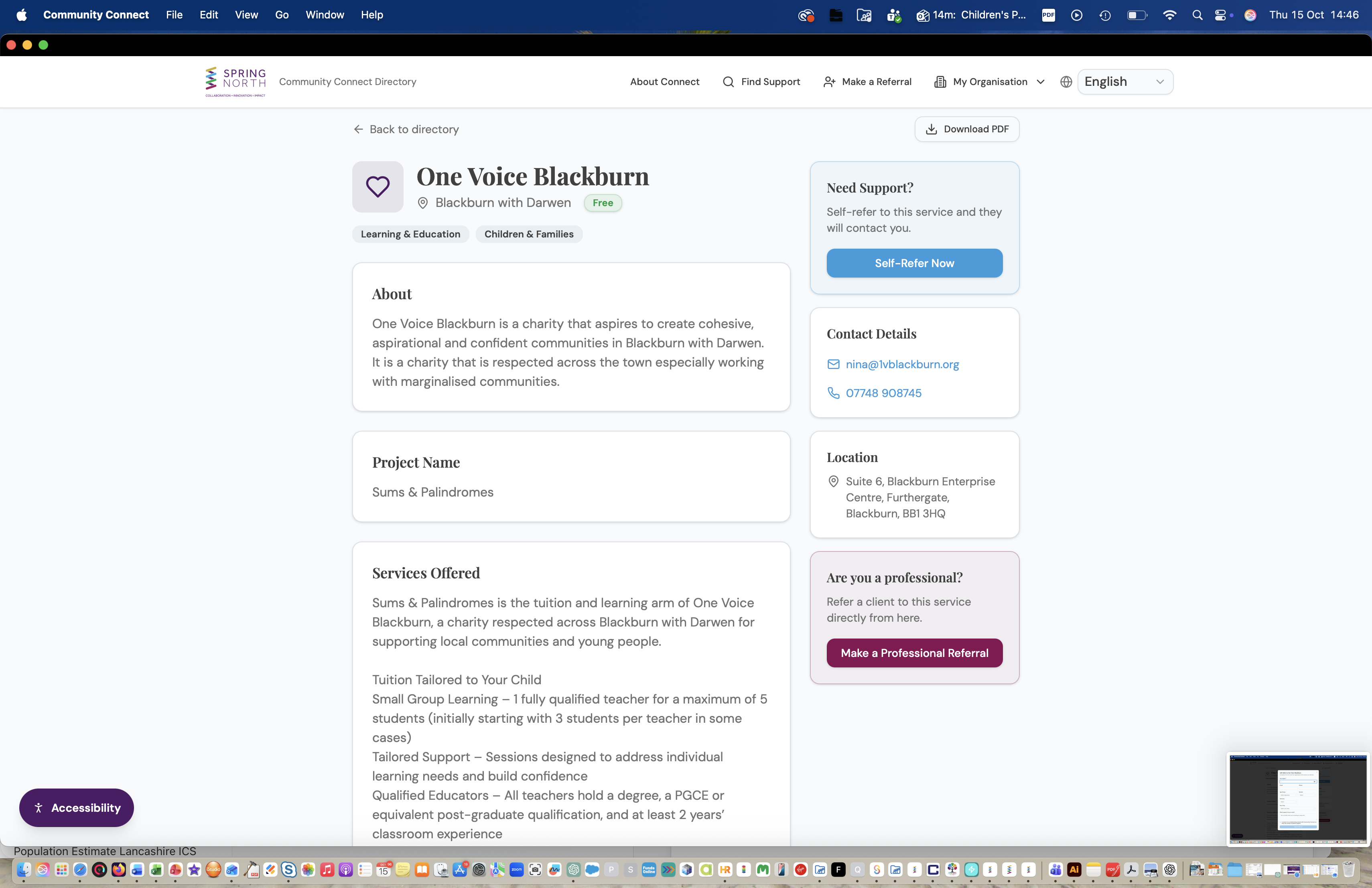
Browse the directory to see all available services as cards, each showing the organisation name, location, a short description, category tags, and whether it's free. Use the heart icon to shortlist any service, or click "View" to open its full details.
Click any service card to open its full profile. Here you'll find everything you need: what the service offers, the project name, opening times, contact details (email and phone), the full address, and how to access it. If the service accepts self-referrals, you can refer yourself directly from the page using the "Self-Refer Now" button. Professionals can also make a referral from here.
For Professionals
Refer clients to the right support
Health and social care professionals can refer clients to one or more services in a single flow — no account required.
Find suitable services
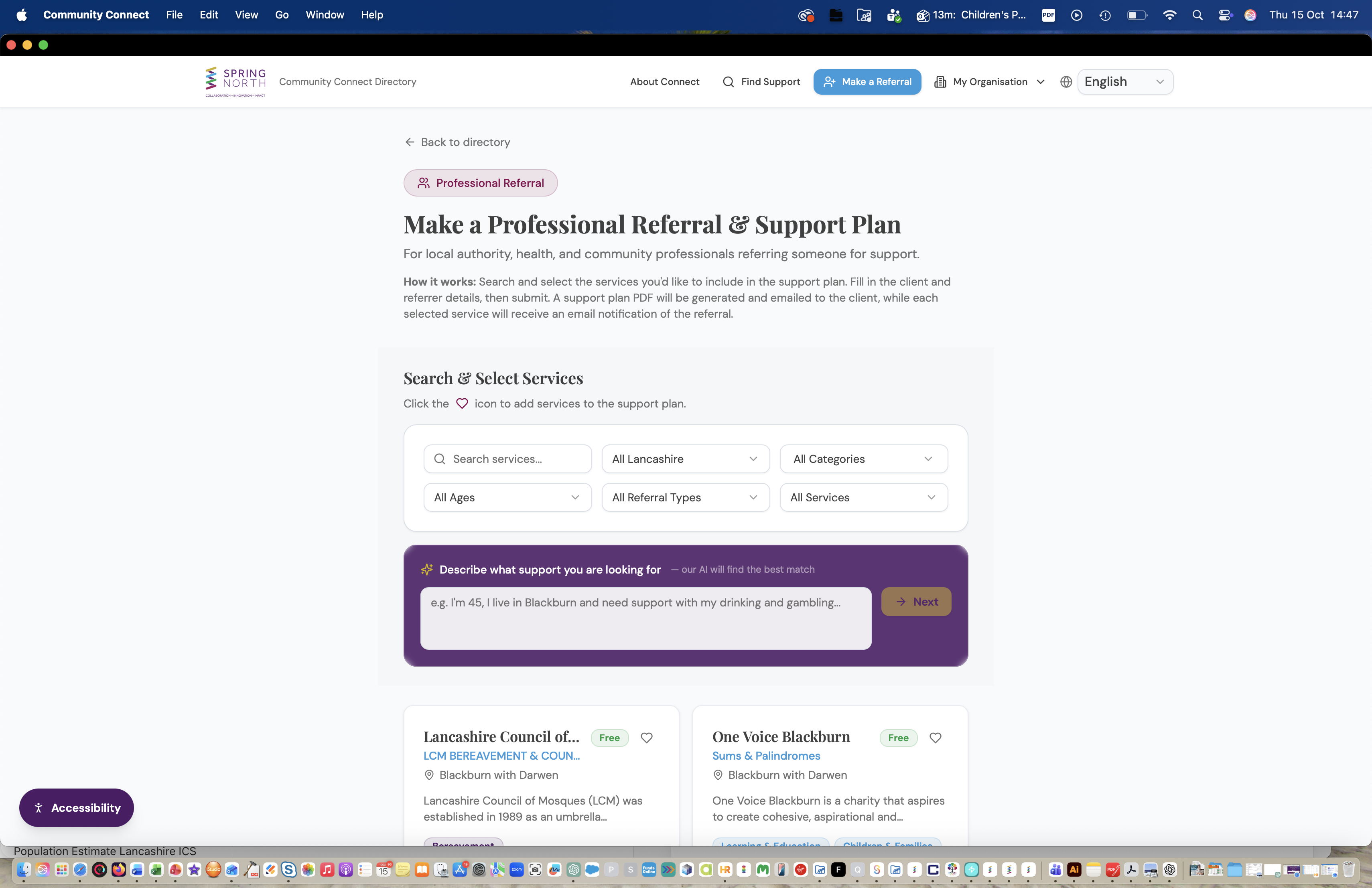
Download a support plan
Complete the referral form
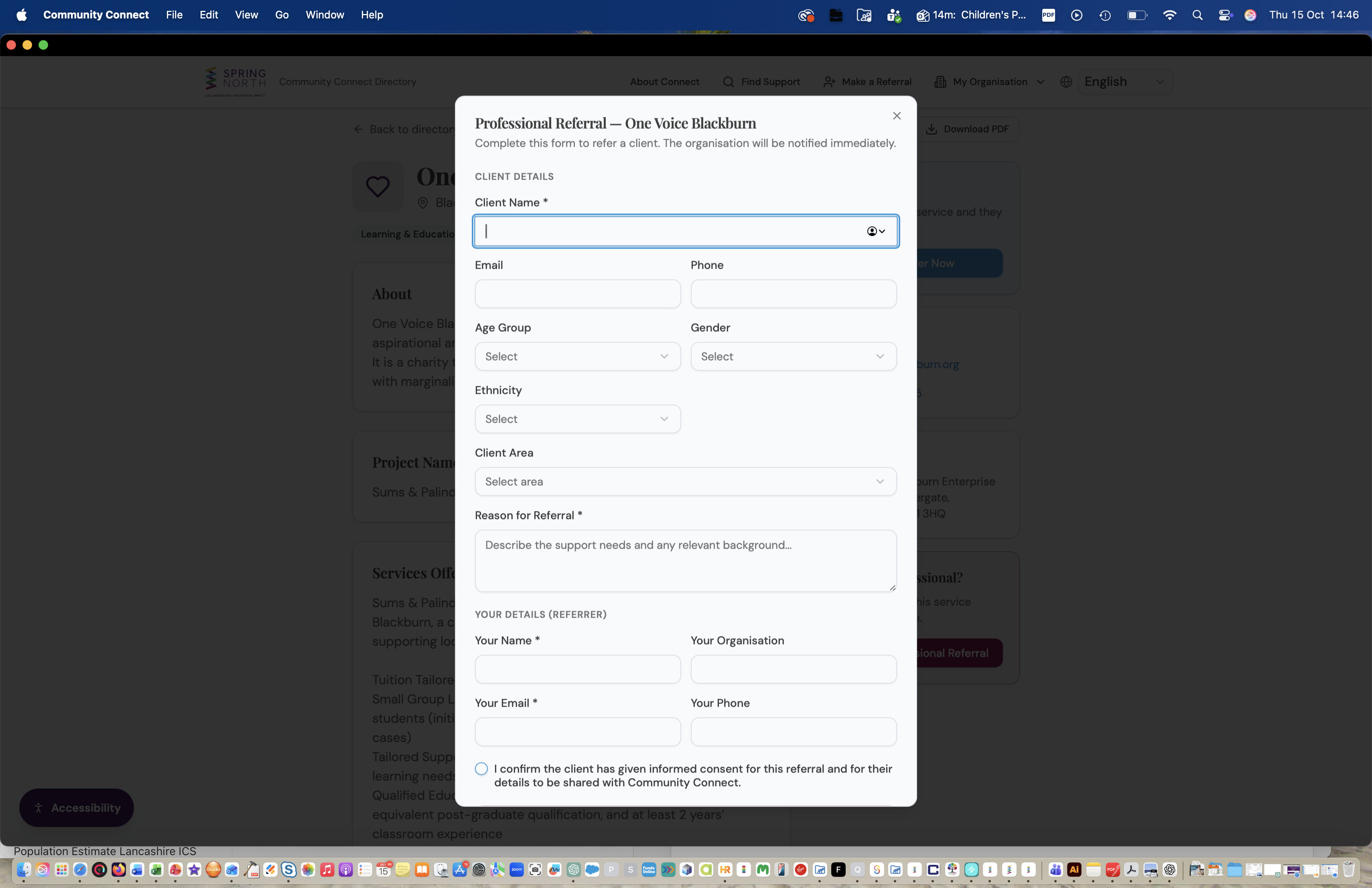
Submit
Consent: You must have your client's consent before submitting a referral. Only the minimum information needed is shared with the receiving organisation.
For Organisations
List your services and manage referrals
VCFSE organisations can apply to be listed, publish their services, and manage incoming referrals — all through a free account.
Apply to be listed
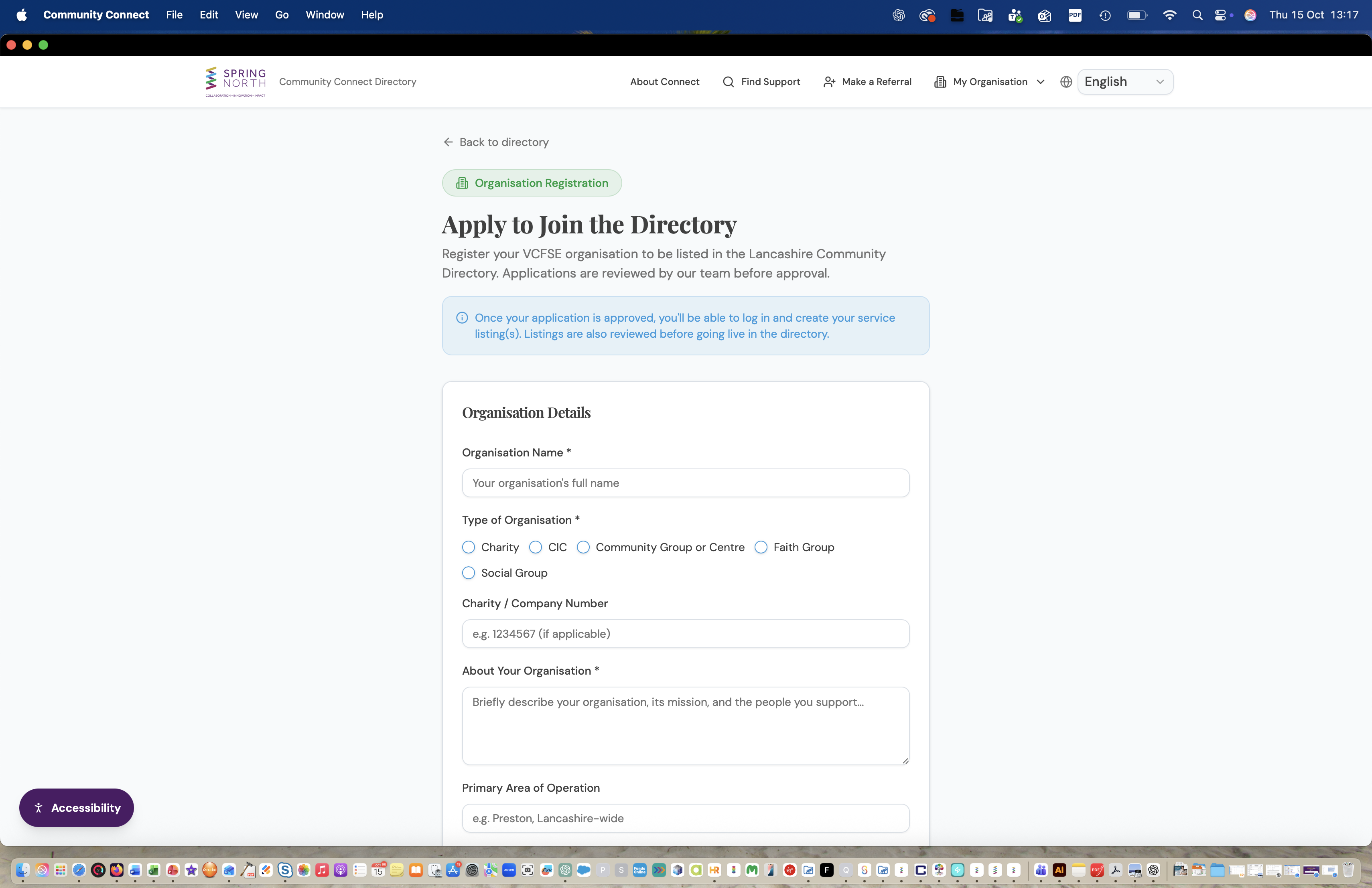
Create an account
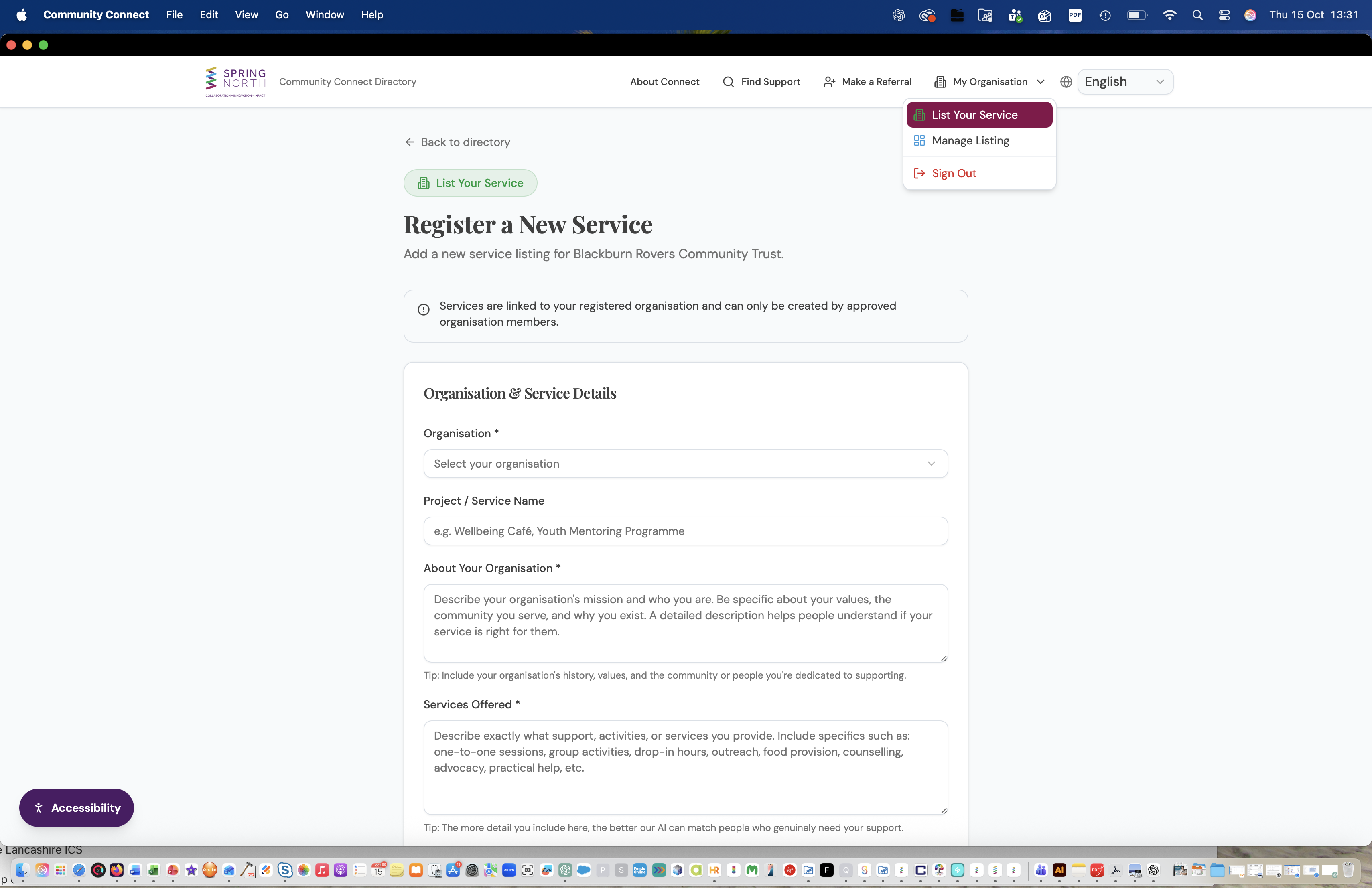
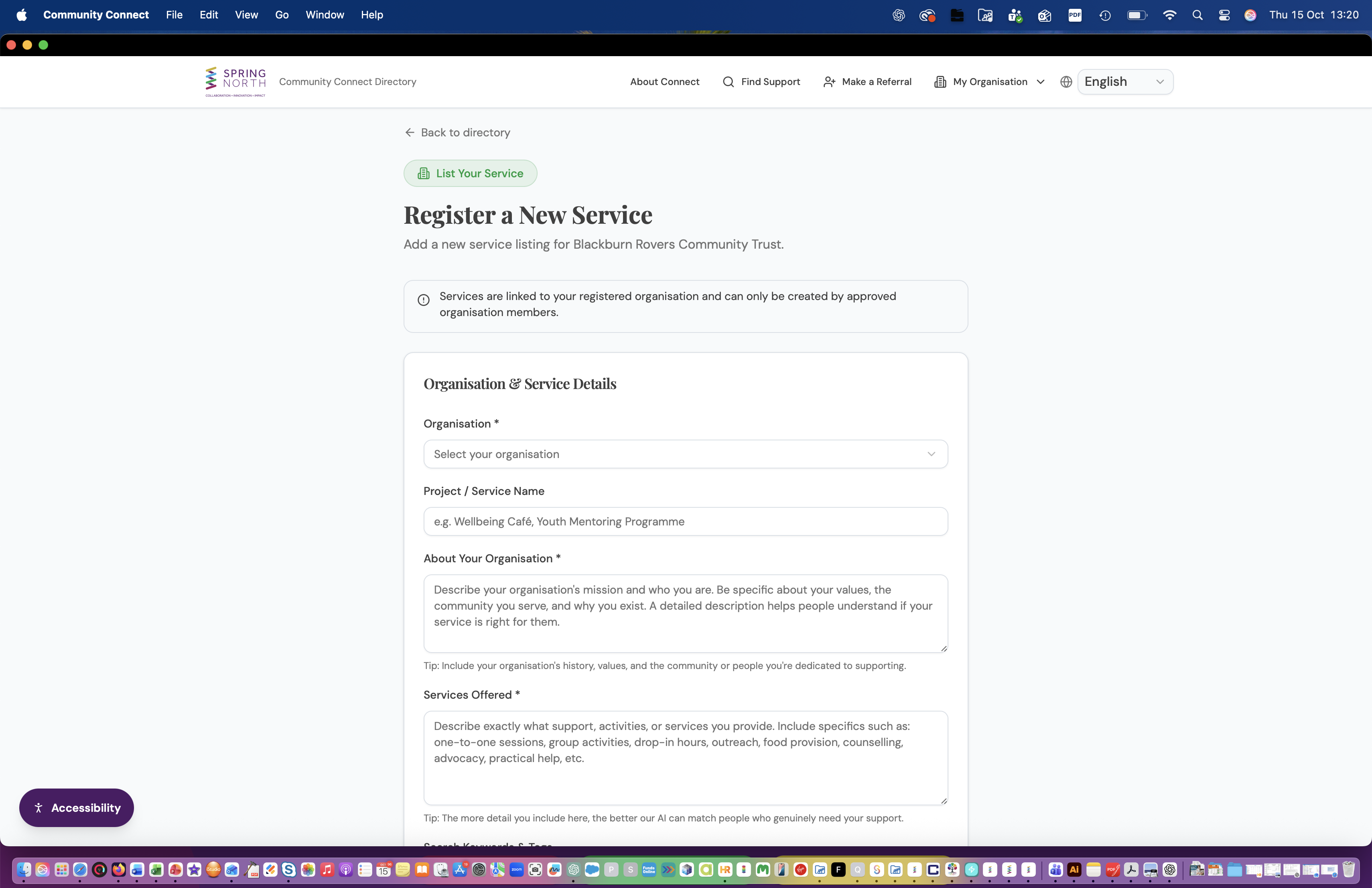
List a service
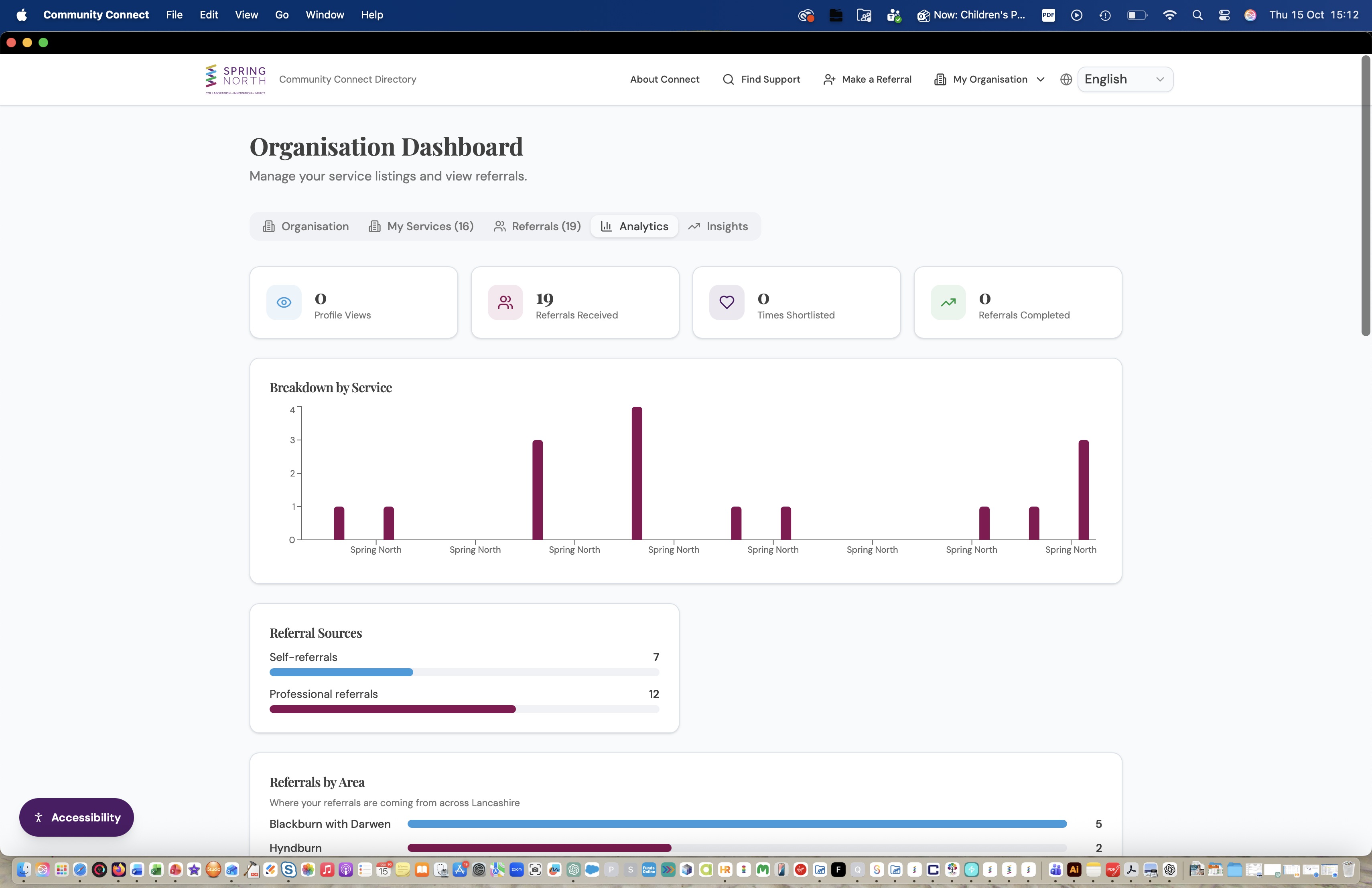
Manage your dashboard
Time-limited services
When listing a service, you can set an optional end date for time-limited projects (e.g. linked to funding). Once that date is reached, the listing is automatically paused and hidden from the public directory. You can update or clear the end date and resume the listing at any time from your dashboard.
Handling referrals
When someone refers a client to your service, you'll receive an email notification. Open the referral from your dashboard to see the client's details, update its status (pending → contacted → in progress → completed / declined), and add internal notes. The referrer is notified if a referral is declined.
Analytics
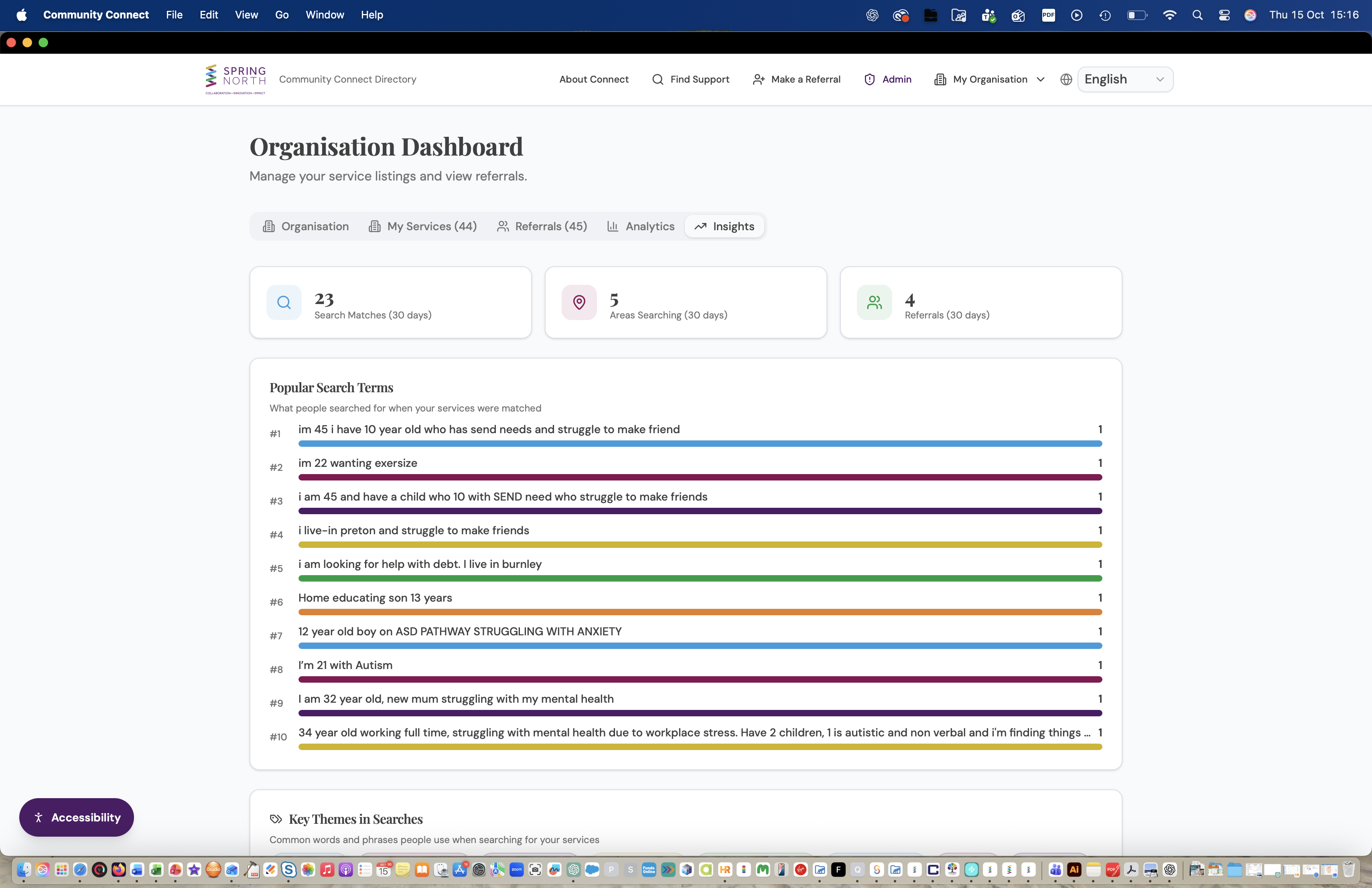
Your dashboard includes analytics showing referral volumes, popular services, and insights into what people are searching for — helping you understand demand for your services.
For Administrators
Moderate listings and oversee the directory
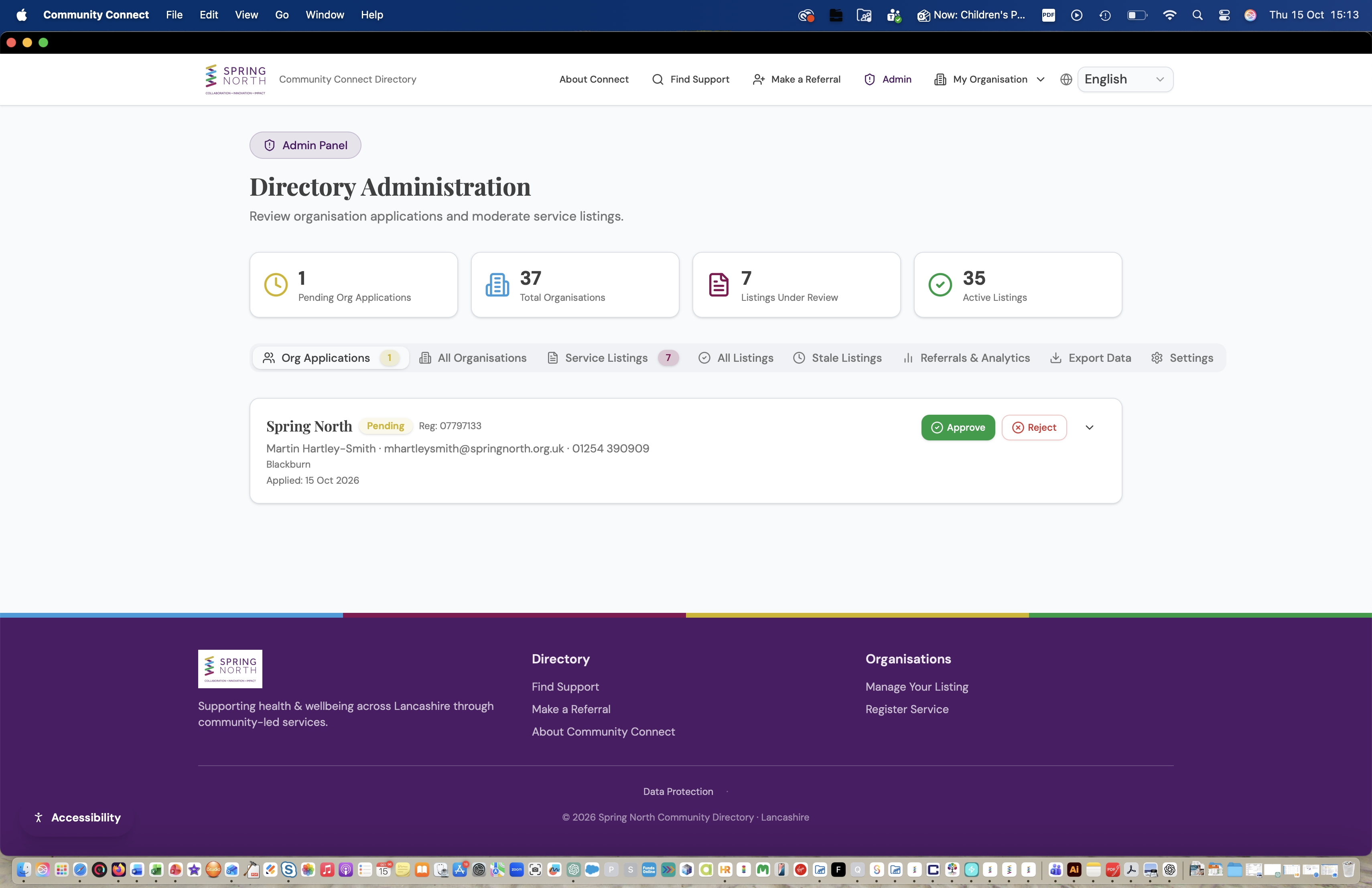
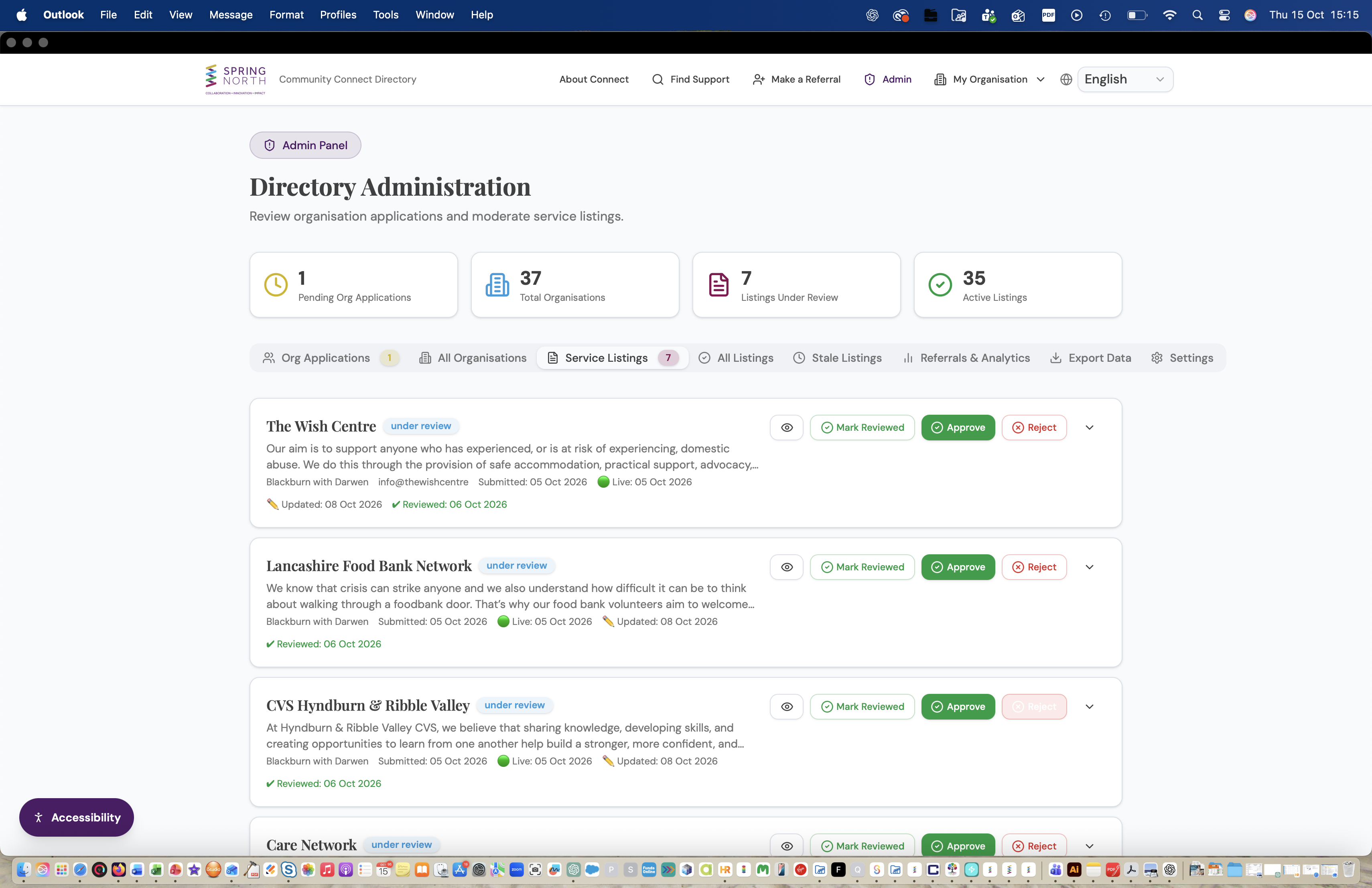
Administrators review organisations, moderate service listings, monitor referrals, and manage platform settings.
Moderate organisations
Moderate services
Monitor referrals & analytics
Manage settings
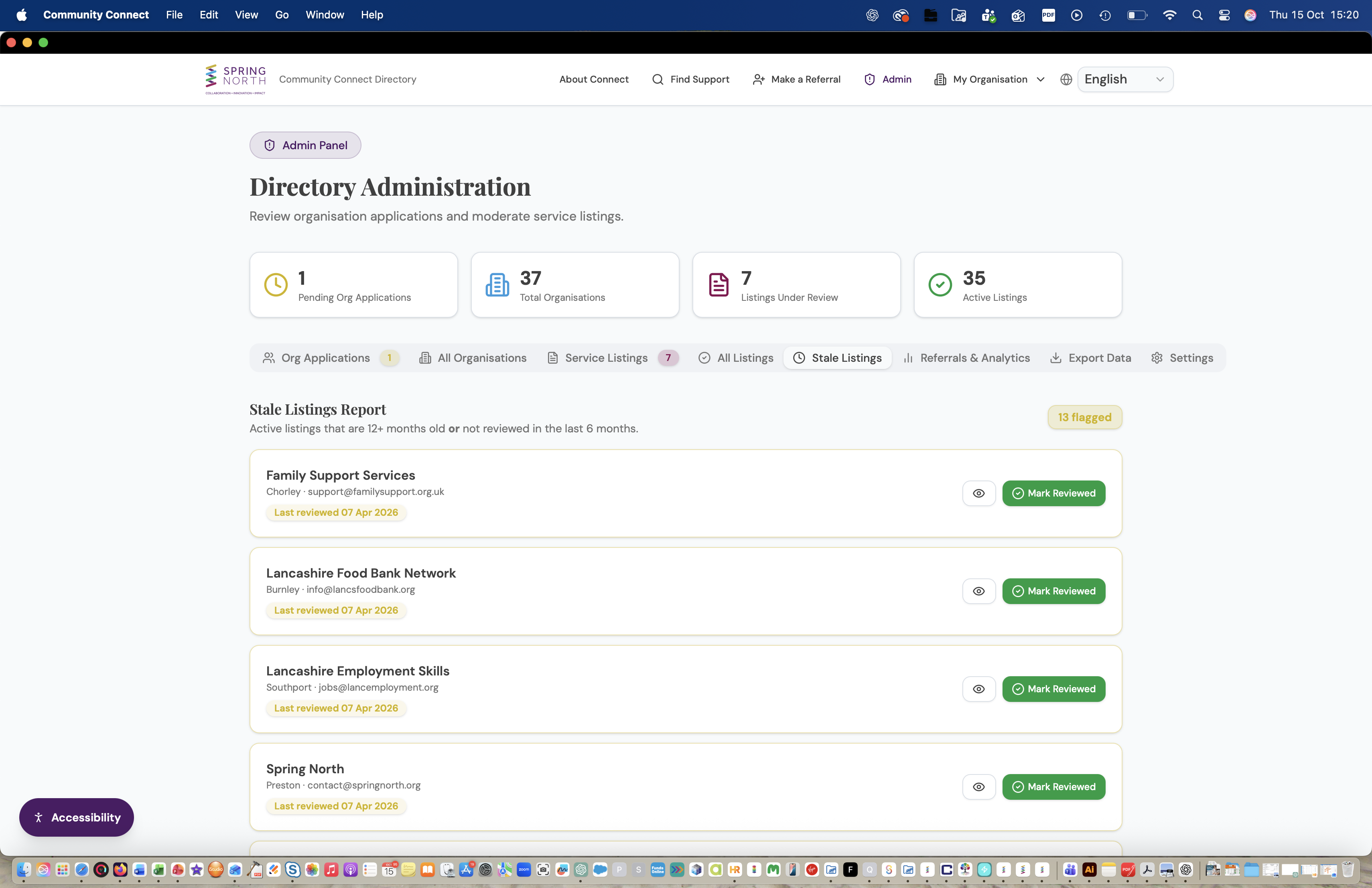
Time-limited services with an end date are automatically paused by a daily check, so the directory stays current without manual intervention.
Accessibility
Tools to make the site work for you
Community Connect is built to be accessible to everyone, including users with sight loss, dyslexia, and other accessibility needs.
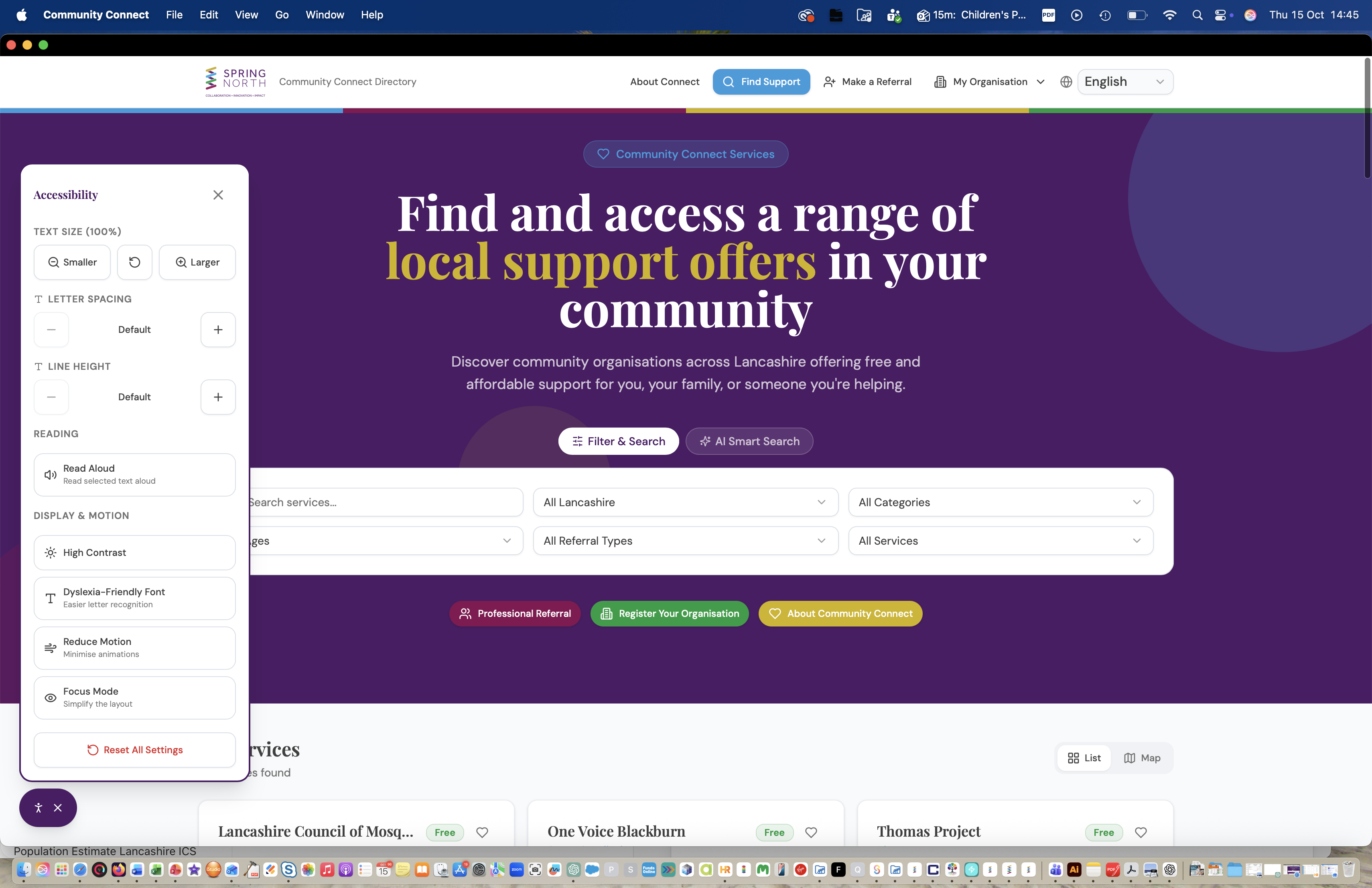
Text size & spacing
Adjust text size and line height to your preference from the accessibility toolbar.
High contrast mode
Switch to a high-contrast yellow-on-black theme for improved visibility.
Read aloud
Activate Read Aloud mode, then select any text on the page to hear it spoken — designed for sight-loss users.
Language
When enabled, choose from multiple languages using the selector in the navigation bar.
Keyboard navigation
Use Tab to move through the site and the "Skip to main content" link to jump past navigation.
Dyslexia-friendly font
Switch to a dyslexia-friendly font and reduced-motion option from the toolbar.
Account & Security
Signing in, passwords, and your data
Accounts are only needed for organisations and administrators. Residents and professionals can search and refer without an account.
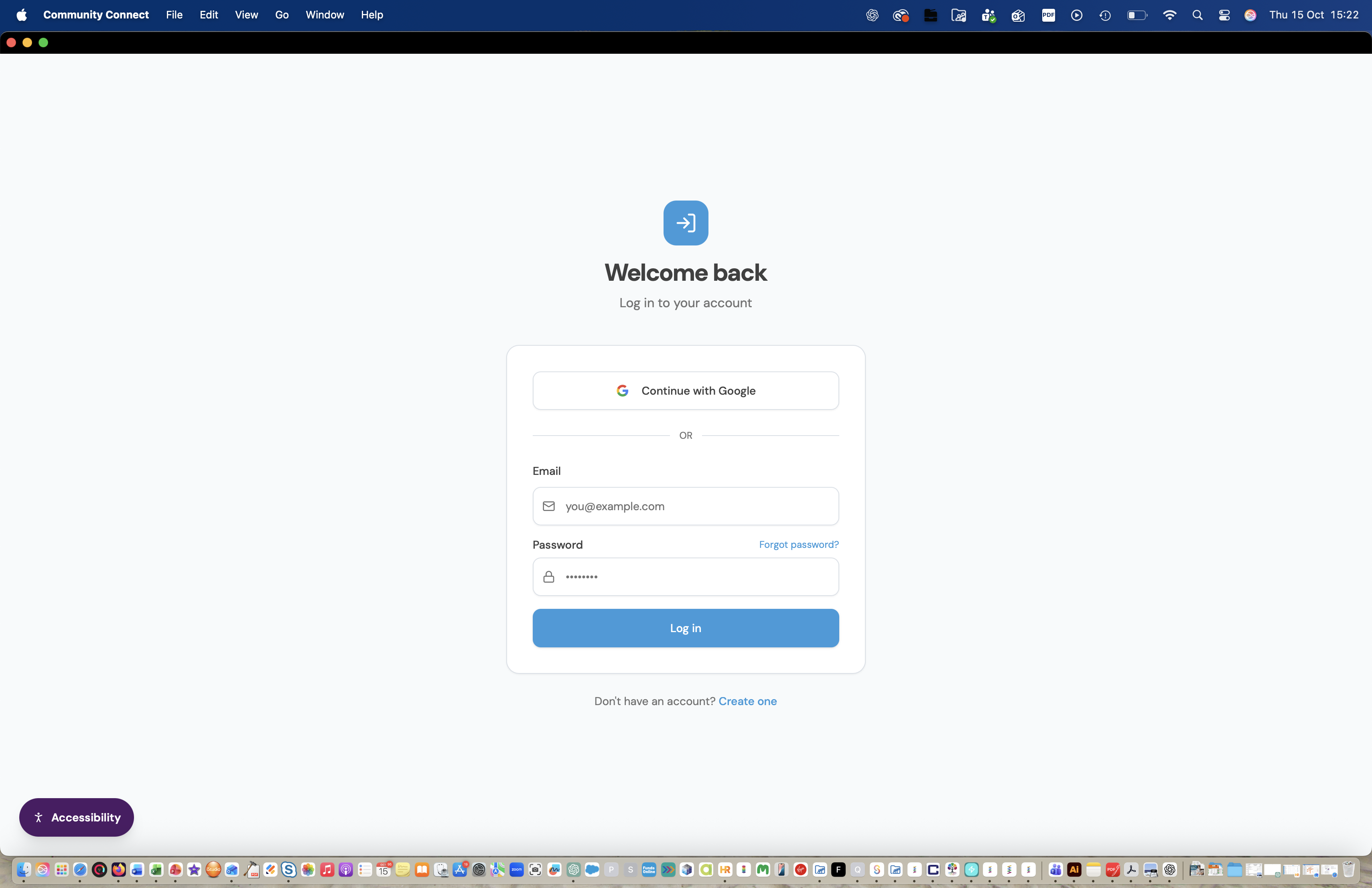
Register
Sign in
Reset your password
For details on how your data is protected, see our Data Protection Policy.
Frequently Asked Questions
Quick answers to common questions
This handbook was last updated on October 15, 2026